GSAP 사례 연구
Animate Scroll Position
스크롤 · MIT (local companion); GSAP Standard No Charge License (runtime)
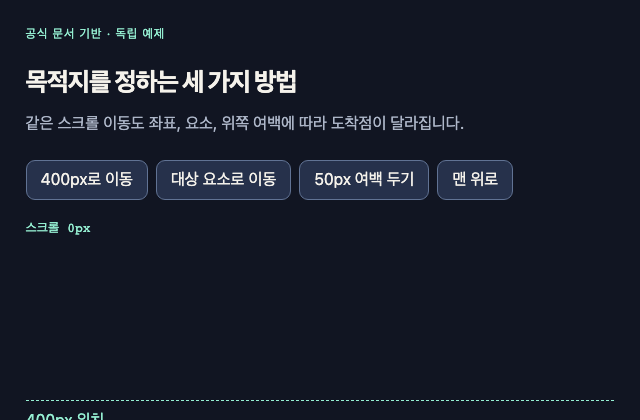
갤러리 안에서는 화면을 벗어나거나 움직임을 멈추면 예제도 닫힙니다. 다시 재생할 때는 처음부터 시작해요.
저장한 HTML에서는 갤러리의 재생 설정이 적용되지 않아요.
SOURCE FILES
독립 예제 코드 읽기
사례의 구도나 문서의 원리를 바탕으로 새로 만든 예제입니다. 아래 코드를 복사해 직접 응용할 수 있습니다. 실행 HTML에는 미리보기를 위한 실행 환경이 들어 있습니다.
vendor/gsap-previews/sources/gsap-41ab2fa5c843/source-input.js
//scroll to 400 pixels down from the top
gsap.to(window, { duration: 2, scrollTo: 400 });

//or to scroll to the element with the ID "#someID"
gsap.to(window, { duration: 2, scrollTo: "#someID" });

//scroll #someID into view with 50 pixels from the top (like a margin)
gsap.to(window, { duration: 2, scrollTo: { y: "#someID", offsetY: 50 } });vendor/gsap-previews/sources/gsap-41ab2fa5c843/index.html실행 안내·자료
<main class="study"><p class="study-label">공식 문서 기반 · 독립 예제</p><header><h2>목적지를 정하는 세 가지 방법</h2><p>같은 스크롤 이동도 좌표, 요소, 위쪽 여백에 따라 도착점이 달라집니다.</p></header><div class="controls"><button id="to-pixel" type="button">400px로 이동</button><button id="to-target" type="button">대상 요소로 이동</button><button id="to-offset" type="button">50px 여백 두기</button><button id="to-start" type="button">맨 위로</button></div><p class="readout" id="scroll-reading" aria-live="off">스크롤 0px</p><div class="scroll-map"><div class="pixel-marker">400px 위치</div><section id="someID"><strong>목표 요소</strong><p>위쪽 경계와 프리뷰 위쪽의 간격을 비교하세요.</p></section></div></main>함께 쓰는 파일 3개 보기
vendor/gsap-previews/sources/gsap-41ab2fa5c843/style.css실행 안내·자료
*{box-sizing:border-box}body{background:#111522;color:#f5f2eb;font-family:system-ui,sans-serif;margin:0}button{font:inherit}.study{margin:0 auto;max-width:1100px;min-height:100vh;padding:clamp(20px,4vw,42px)}.study-label{color:#95efd2;font-size:12px;letter-spacing:.08em;margin:0 0 24px}header h2{font-size:clamp(24px,4vw,40px);letter-spacing:-.04em;margin:0 0 12px}header p{color:#aeb7c9;line-height:1.6;margin:0 0 24px;max-width:62ch}.controls{display:flex;flex-wrap:wrap;gap:8px;margin:20px 0}button{background:#26314b;border:1px solid #617394;border-radius:9px;color:#f5f2eb;cursor:pointer;padding:9px 14px}button:hover{background:#334261}button:focus-visible{outline:3px solid #95efd2;outline-offset:3px}button:disabled{cursor:default;opacity:.45}.stage{align-items:center;background:radial-gradient(ellipse at top,#243253,#141c2d);border:1px solid #3d4c68;border-radius:20px;display:flex;justify-content:center;min-height:220px;overflow:hidden;position:relative}.note{color:#aeb7c9;font-size:13px;line-height:1.5}.readout{color:#95efd2;font-family:ui-monospace,monospace;font-size:13px;min-height:2em}.stage svg{display:block;max-width:100%}code{font-family:ui-monospace,monospace}button[aria-pressed="true"]{background:#95efd2;color:#111522}

.study{position:relative}.controls{background:#111522;position:sticky;top:0;z-index:5}.readout{position:sticky;top:100px;z-index:4}.scroll-map{height:1500px;position:relative}.pixel-marker{border-top:1px dashed #95efd2;color:#95efd2;left:0;padding-top:10px;position:absolute;right:0;top:100px}#someID{background:linear-gradient(135deg,#897dff,#fc9fc4);border-radius:20px;color:#111522;left:0;min-height:300px;padding:35px;position:absolute;right:0;top:650px}#someID strong{font-size:36px}vendor/gsap-previews/sources/gsap-41ab2fa5c843/script.js실행 안내·자료
gsap.registerPlugin(ScrollToPlugin);
const run=(vars)=>{gsap.killTweensOf(window);gsap.to(window,{duration:2,...vars})};
document.getElementById('to-pixel').addEventListener('click',()=>run({scrollTo:400}));
document.getElementById('to-target').addEventListener('click',()=>run({scrollTo:'#someID'}));
document.getElementById('to-offset').addEventListener('click',()=>run({scrollTo:{y:'#someID',offsetY:50}}));
document.getElementById('to-start').addEventListener('click',()=>run({scrollTo:0}));
const update=()=>document.getElementById('scroll-reading').textContent='스크롤 '+Math.round(scrollY)+'px';
const placeMarker=()=>{const map=document.querySelector('.scroll-map');document.querySelector('.pixel-marker').style.top=(400-map.getBoundingClientRect().top-scrollY)+'px';};
new ResizeObserver(placeMarker).observe(document.querySelector('.study'));placeMarker();
addEventListener('scroll',update,{passive:true});update();LICENSE실행 안내·자료
Locally authored companion HTML/CSS/control wiring: MIT License.
Copyright (c) 2026 StyleGallery contributors

Permission is hereby granted, free of charge, to any person obtaining a copy of this software and associated documentation files (the "Software"), to deal in the Software without restriction, including without limitation the rights to use, copy, modify, merge, publish, distribute, sublicense, and/or sell copies of the Software, and to permit persons to whom the Software is furnished to do so, subject to the following conditions:

The above copyright notice and this permission notice shall be included in all copies or substantial portions of the Software.

THE SOFTWARE IS PROVIDED "AS IS", WITHOUT WARRANTY OF ANY KIND, EXPRESS OR IMPLIED, INCLUDING BUT NOT LIMITED TO THE WARRANTIES OF MERCHANTABILITY, FITNESS FOR A PARTICULAR PURPOSE AND NONINFRINGEMENT. IN NO EVENT SHALL THE AUTHORS OR COPYRIGHT HOLDERS BE LIABLE FOR ANY CLAIM, DAMAGES OR OTHER LIABILITY, WHETHER IN AN ACTION OF CONTRACT, TORT OR OTHERWISE, ARISING FROM, OUT OF OR IN CONNECTION WITH THE SOFTWARE OR THE USE OR OTHER DEALINGS IN THE SOFTWARE.

The separately retained official documentation excerpt is source input, not a recovered CodePen source set; this local MIT notice does not assign a new license to that excerpt.
GSAP 3.15.0: Copyright 2026, GreenSock. All rights reserved. Subject to https://gsap.com/standard-license. Original library notices are preserved.
BEHIND THE EXAMPLE
이 장면을 만드는 원리
이동 목표를 지정하는 세 입력
공개 입력의 의미와 새 명령이 진행 중인 표현을 어떻게 대체하는지 선언합니다.
- 이 예제에서는
- 공식 문서에는 scrollTo:400, scrollTo:"#someID", 그리고 y와 offsetY:50을 갖는 세 대안이 있습니다. 동반 예제는 이를 각각의 버튼에 연결하고 새 명령 앞에서 이전 window 트윈을 정리합니다. 버튼·목표 요소·위치 표시기는 새로 만든 표면이며 원본 CodePen 구조는 확보하지 못했습니다.
코드와 함께 확인하기
코드에서 찾기
scrollTo: { y: "#someID", offsetY: 50 }source-input.js요소 목표에 위쪽 여백을 추가하는 실제 문서 입력입니다.
const run=script.js동반 예제가 최신 버튼 입력을 실행하며 이전 스크롤 트윈을 제거합니다.
직접 해보기
좌표, 요소, 여백 버튼을 각각 누릅니다.
살펴볼 변화좌표 모드는 scrollY 400, 요소 모드는 요소의 위쪽, 여백 모드는 그보다 50px 앞의 위치로 향하는지 확인합니다.
첫 이동이 끝나기 전에 다른 목표를 누릅니다.
살펴볼 변화새 목표의 이동만 남는지 확인합니다.